Advertise Box

Showing posts with label Module 1: Getting Started. Show all posts
0
Most of the online services that are used throughout this guide either use a Google account, or require you to register an email address.  These should not be personal accounts, rather they should be registered to the club or organization.  That way, the accounts can be easily passed on to the next individual who takes over as the site webmaster. 

Blogger uses Google to host accounts, which makes sense since Blogger is owned by Google.  You need to create a Club Account that will act as the administrator level account for your Club's Blog/Website.

Since most online services require an email address in their registration process, it makes the most sense to create a Google Gmail account:


  1. In a web browser, go to http://www.gmail.com.
  2. Under the login block, click the "Create an account >>" button.


  3. In the "Get started with Gmail" window, enter the appropriate information for a club account.  Ensure that you click the "check availability" button to ensure that the desired email address is available.
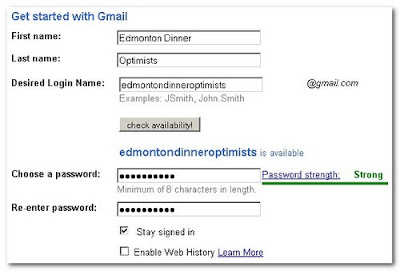

    Write the password down and safeguard it, and continue with the next step.

  4. Set your email recovery options.  This is handy as it will allow you to recover or change the password in the event that you forget or lose the current one.  Once completed, continue to the next step.


  5. Type in the CAPTCHA word, read the terms of service, and click "I accept. Create my account."


  6. At the congratulations window, click "Show me my account".


    Believe it or not ... you still have more work to do.

  7. This is what your GMail account will initially look like.  There are some setting changes that need to be made to ensure that this account is as secure as possible.


  8. In the footer, click the "turn off chat" and "turn off buzz" links.  Both of those features advertise the existence of the account and can expose the contacts list to people unnecessarily.


  9. In the left column, change the account status to "Invisible".


  10. In the header, click on "Settings".


  11. In the Settings header, select "Buzz".


    Scroll down to the bottom.


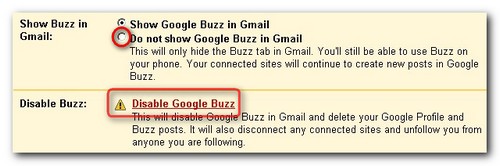
    Select "Do not show Google Buzz in Gmail" and click "Disable Google buzz" (recommended).  This will remove Google Buzz from the Gmail account.

You are now done for the moment.  There are other changes that can be applied to support specific features at a later time.  We will discuss those when necessary.
0
Why create a ZIP file.  Besides making a single file smaller so that is will take less storage space and will download faster, a ZIP file can also serve as an archive file.  Let's say that there is a collection of files that you want to make available is a single download.  You can use a compression utility.


7-Zip is a free compression utility that can archive collection of files into a single ZIP file:
  1. Place the desired files for the collection into a folder.
  2. Right-click the folder and choose 7-Zip.  You can choose several different methods to create a ZIP archive.


    • Add to archive ... - will provide you the choice of the type of archive file to create and where to save it.
    • Add to "<foldername>.zip" - will save the .zip file at the same location as the folder or file being compressed.

    Your folder will be combined into a compressed .ZIP archive file.
  3. You can also use 7-Zip to extract a ZIP archive file.  Right-click the ZIP file and choose the desired options to open or extract the contents.
0
There will be times that someone will want to make a document or spreadsheet downloadable in a preformatted non-changeable format.  Creating a PDF version of the file offers that.

There are several PDF generating utilities that are available.  One that comes highly recommended is PDFCreator.  This utility is installed as a printer so you create a PDF copy of a file by printing it.  This gives the use the option to apply printing options in addition to PDFCreator options.


Here is an example of creating a PDF copy of the Website planning document:
  1. With the document opened in the native program that was used to produce it, choose to print the document.


  2. In the print window, select "PDFCreator".  Make any desired changes to print options by clicking the "Options ..." button.

    Click "OK" to continue.

  3. In the "Document" window, record the applicable information.  You should make an effort to specify the author, subject and keywords.  That information is then available to anyone who mouses over the PDF file at a later date.  In addition, that same information is included in any internet search engine indexes that discovered the PDF file.


    To modify the PDF options, click on the "Options" button.


  4. In the "Options" window, modify the settings to apply to the PDF file as it is created.


    Click on the file format, "PDF" in this example.  Then work through the detail pages on the right.  Under the "General" tab, pay attention to the resolution.  The default should be 300 dpi.  If the text characters and images appear to be of poor quality and the document only has a few pages, you can increase "Resolution" to 600 dpi.


    Under "Compression", selecting "Compress" for color images will try to apply reasonable amount of compression to graphic images in the document.  JPG files suffer from quality loss as you apply compression, so if images appear to be of low quality, then uncheck this option.


    Under the "Security" tab, specific options can be enabled, encryption, passwords, disallowing the user to print the file, copy text and images or modify the document or comments.
  5. Also check the options for JPEG files.


    Ensure that the minimum Resolution is set to 300 dpi and quality is set to 100%.
  6. When all options have been configured, click the "Save" button.  That will create the PDF file which will usually attempt to open the document in a PDF Reader.

0
As part of the preparation of content, I recommend that you prepare TXT files for the textual content for all pages and at least three blog posts.  That will provide sufficient content to demonstrate menus and category lists.

Why is preparing TXT files so important?  Well, blogger uses it's own styles to format text that is typed or pasted into the WYSIWYG (what you see is what you get) editor.  If you copy content from a Word .DOC file, or a Wordpad or OpenOffice .RTF file, the hidden formatting codes are also copied to the WYSIWYG editor.  What results is unpredictable look and feel in the blog post or page.  Paragraphs could end up right margin aligned, extra blank lines and spaces could be inserted, unknown characters could mysteriously appear in the middle of the  text.

The safest method to prepare text content is to type it in an ASCII text editor like Windows Notepad or the free application Notepad++.  I recommend Notepad++ because is offers tabbed workspaces, each which can be saved to a unique name. 


Just like tabbed web browsers, you can drag and drop a .TXT file into the Notepad++ workspace and it will open the document in a new tabbed workspace. Tabbed workspaces also makes it easier to copy or move text from one tab workspace to another and supports working on multiple documents concurrently.

Oh ... did I mention that Notepad++ is free?

When you paste content from a TXT file, Blogger's WYSIWYG editor is so smart that it will properly interpret the blank lines between paragraphs.


You still have the freedom to use the editor's toolbar to format the text, add links to external files or web pages, add graphics, add bulleted or numbered lists, etc.  Thw Blogger WYSIWYG toolbar functions in the same manner as toolbars found in Microsoft Office, OpenOffice.org, and Wordpad.
0
Here are some basic tips on writing effective blog posts (aka news articles):
  • Know Your Audience - write for your audience keeping in mind the goals of your website.
  • Always Save as a Draft - always save your blog posts as a draft and move onto to something else.  Come back a couple of hours later (or the next day is even better) and read what you wrote.  A little time and distance often brings out that 'what the heck was I thinking', or 'why did I write it that way'.
  • Spell check your work - enough said!
  • Focus on the First Paragraph - really focus on the wording of the first paragraph.  The reason for this is two-fold:
    • Anyone who is reading the article will make a decision within the first 25-30 words if they will continue.  The first paragraph needs something compelling enough to keep them reading.
    • Internet search engines will focus their searches on the first 50 - 100 words.  That means that key words that people would normally use in Google or Bing or Yahoo to search for an item of interest, must be in the first 25-30 words of the article.  In addition, when a person is looking the the search results, the first 10-20 words often appear as part of that search result.
  • Keep it short - Most news type articles should be limited to 100 - 400 words (about 4 to 6 paragraphs).  If you go longer than that, make the story really compelling.
  • Use Photographs - a minimum of one photograph are piece of artwork which should be placed at the top.  For longer articles (exceeding 4 paragraphs) add some additional pictures ... about one picture every third or fourth paragraph.
  • Use Headings - within the article, make use of headings to break up a longer article.
  • Announcements versus News - announcements should use a different visual format than normal news articles.  Announcements must focus on the who, what, where, and when.
  • When in Doubt - go grab a free daily or weekly newspaper in your community and read it.  Ask yourself which article and announcements grabbed your attention and how the writer managed to do that.  Write those tricks down and use them in your writing.
  • Enable Comments - your readers will often provide invaluable insight to help improve your writing.  Always ensure that you answer comments that contain a question and thank visitors for participating.
0
Here are some of the basic tools that are highly recommended.  These tools can be used to prepare and save files in formats that are web friendly like GIF, JPG, PDF, and WMV.


  • Notepad++ is a free text editor that can be used to prepare text free of invisible formatting codes that are added by word processing programs like Microsoft Word.  Download Notepad++.
  • Microsoft Paint is a free graphics utility included with the Windows operating system.  This utility can be used as a canvas to create an image that uses multiple imported images from other sources.  You can use FSCapture to create a single image graphic visible on the Microsoft Paint canvas.
  • Windows Movie Maker is a free program from Microsoft that is included with Windows XP or can be downloaded as part of 'Windows Live' for Windows Vista or Windows 7.  Use Movie Maker to create simple videos that can include still photos, audio and music, and actual video.  You can add text and create a lively WMV file that can be uploaded to YouTube.
  • OpenOffice.org is a free 'Office Suite' that includes a word processor, a spreadsheet, a slideshow, a database, and other features.  Very handy if you do not have a copy of Microsoft Office.  Download OpenOffice.org.
  • 7Zip is a free file archiving utility that can be used to create ZIP files which can then be uploaded to your website.  When you have larger files or a collection of files to provide, it is best to archive them into a single ZIP file and make them available for download.  Download 7Zip.
  • FSCapture is a free screen capture utility that can be used to create graphic files.  It is a great utility to crop existing photo graph files to produce a new photo file.  Download FSCapture Note - this link is for the last freeware version of FSCapture.
  • PhotoFiltre is a free graphics utility with some advanced tools that can be used to brighten or darken an image, blur an image, and apply layers and filters to an image.  Download PhotoFiltre.
  • PDFCreator is a free utility that is used to convert other 'document' files to PDF format.  PDFCreator installs as a printer, so you create PDF documents by printing to them.  Download PDFCreator.

All logo artwork, trademarks, and brand names are the property of their respective owners.
0
Before you head down the path of creating and building the structure for your club blog / website, you should gather a minimum of content and supporting graphics and material. 


What will you need?

  • A rough diagram of the look of your site ... draw it free hand on some paper and write appropriate notes.
  • The banner graphic for the top header space of your site.
  • The text for at least three articles, and at least one picture or photo file for each article..  These can be articles dated before, on or after the date that the website becomes public. 
  • The text, artwork and photographs for each static page that will be added to the website.
  • Electronic copies of club collateral ... newsletters or bulletins, brochures, flyers, forms, etc.
  • Bundle material into downloadable ZIP files if that makes sense ... like a collection of club newsletters for each Optimist year.
  • Copies of resource material that will be valuable to club members.
  • Artwork and photographs ... lots of them from the recent past.
  • Links to other websites and online resources that you will want to include.

Sub-Lessons

This Lesson includes 7 sub-lessons:
  • Lesson 7.1:  Free software tools for creating and working with text files, graphics, PDF, and archive files.
  • Lesson 7.2:  Tips on writing effective blog posts.
  • Lesson 7.3:  How to prepare TXT files.
  • Lesson 7.4:  How to prepare PDF files.
  • Lesson 7.5:  How to create ZIP files.
  • Lesson 7.6:  How to create a banner graphic.
  • Lesson 7.7:  Some tips for creating graphics.
0
Once the plan has been prepared, there are five main tasks:
  • Gather content - team members will gather the required content and deliver it to the website designer.
  • Prepare the content - this includes creating PDF files for download content, prepare graphic files, video, slideshows, and write the content for each page and article.
  • Build the website - the web designer will build the website using the CMS.
  • Upload the content - this includes the creation on pages and articles using the text content previously prepared, and uploading the supplementary files for the site such as PDF files, graphics, video,  and slideshows.
  • Release the site - this includes the review by the website committee, training the club webmaster, making necessary revisions, approval from the club executive, and releasing the website to the public internet.


The Plan

There are a multitude of specific tasks that need to be completed, usually in a specific order to guarantee the successful completion and delivery of the website by the defined completion date.


For the website in this guide, we prepared a checklist that identified:
  • the services to open accounts in
  • the pages to create
  • the strategy to add content, provide for review by committee members, and approval by the club executive
  • the strategy to provide training
  • the date to handover the site to the club and release it to the internet
0
Planning Team

Building a targeted, mission oriented website cannot be left to the web designer exclusively.  Since the site will serve many individuals, it should draw ideas and content from multiple club members.  A club planning team called the "website committee" should be chartered to make decisions about the mission of the site and to gather content for the web designer.

Design Goal

A club website that can be easily maintained should meet the following criteria:
  • the site should have a pleasing aesthetic look to it.
  • the site should be easy to navigate and provide easy to understand means to find information such as menus, categories, and a site search system.
  • the site must be easy for club members with no website design experience to maintain.
  • the site must be easy for club members to contribute content.
  • the site must make use of social media to increase the chance of it being visited.


Preparing the Plan


The club website planning committee should prepare a written plan that:
  • Identifies the team members.
  • Defines the purpose of the website and goal of the project.
  • Defines the target audience that will visit and use the website.
  • Discusses the CMS to use, the domain name to register, and the projected completion date.
  • Lists the pages to include in the website